If you’ve walked through a mall, waited at a bus stop, or stood in line at a coffee shop in the last five years, you’ve probably glanced at a digital signage screen. Unlike static posters that get torn, faded, or replaced only once a year, digital signage lets you update promotions, wayfinding, and announcements in seconds. It’s more affordable, flexible, and effective than most legacy options—if you set it up the right way. That’s where our box PCs come in. As a box PC supplier, we’ve spent years refining the hardware and support that makes commercial-grade digital signage simple for small business owners and big operations alike. Today, I’m walking you through exactly how to build a reliable, long-lasting digital signage system with a box PC—no fancy IT degree required. BOX PC

First, let’s cut through the confusion. You might be asking: why a box PC, not a regular desktop? Desktops are bulky, require dedicated space, and are built for home or office use, not 24/7 operation in dusty mall hallways, bright outdoor plazas, or busy restaurant lobbies. A box PC is compact, fanless or low-fan, and engineered to run nonstop in harsh environments. It draws less power, generates almost no excess heat (which cuts down on hardware failure), and has a footprint small enough to tuck behind a 55-inch TV or above a ceiling tile. For digital signage, that’s non-negotiable—your screen can’t go dark because a desktop overheats at 2 a.m. during a holiday sale.
Before you order anything, start with mapping your needs. Digital signage isn’t one-size-fits-all, and skipping this step leads to wasted money or a system that doesn’t work for your space. Let’s break down the key questions: How many screens are you powering? Are they all in the same location, or spread across multiple sites (like a retail chain with 10 locations)? Do you need to stream live content—like sports scores, live weather, or social media feeds—or only pre-made videos and static promotions? And where are you installing the screens? Indoor environments (like a bank lobby) are less harsh than outdoor use, where screens need to withstand rain, extreme temperatures, and direct sunlight.
For most single-location digital signage, a mid-range box PC works perfectly. If you’re powering 4K screens or need to run multiple apps at once (like a point-of-sale sync and promotional videos), step up to a higher-processing model. For multi-site operations, you’ll also need to account for remote management tools—more on that later.
Next, gather your core hardware. The box PC is the heart, but you’ll need a few other pieces to make it work. Let’s list them out, and I’ll tie in what makes our box PCs the right choice here:
-
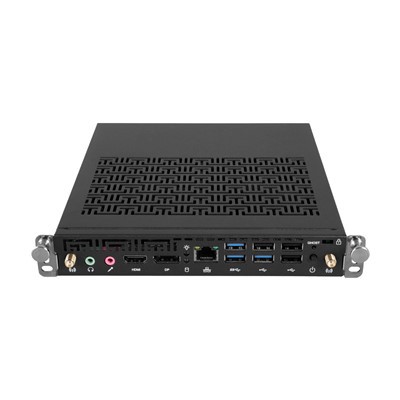
The Box PC: This is your content’s brain. Look for models with at least 8GB of RAM (16GB for 4K or multi-screen setups), solid-state drives (SSD) instead of hard disk drives (HDD) — SSDs don’t have moving parts, so they’re far more durable for 24/7 use — and enough video outputs to match your screens. Our box PCs come with HDMI 2.1 and DisplayPort 1.4, which support 8K resolution if you want to upgrade down the line, and we offer custom configurations for multi-screen setups or specialized environments, like outdoor installations. We also test every unit for 500+ hours of continuous operation before it leaves our warehouse, so you don’t have to worry about early failure.
-
Displays: For most indoor use, a commercial-grade LCD or LED screen is better than a regular consumer TV. Commercial screens are built to run 16+ hours a day, every day, with built-in brightness adjustment for bright spaces. Consumer TVs might cut out after a few months of 24/7 use, which means expensive replacements. We work with display partners to offer bundled discounts when you order a box PC and screen together, so you save money and get a system that’s guaranteed to work together.
-
Mounting Hardware: You’ll need a wall mount, pole mount, or ceiling mount for your screen, plus a small shelf or adhesive bracket to hold the box PC. Since box PCs are so compact, they usually mount directly to the back of a screen with a VESA mount adapter—no extra shelf needed, which cleans up your space and reduces clutter. Our box PCs all have VESA 75×75 or 100×100 mounting points, so they fit nearly every commercial screen on the market.
-
Network Connection: Digital signage relies on a stable internet connection to update content. Wired Ethernet is the most reliable option for 24/7 use—Wi-Fi can cut out or slow down during peak times, which freezes your content. If Wi-Fi is your only option, look for a box PC with Wi-Fi 6, which is fast and less prone to interference. Our box PCs have Gigabit Ethernet ports as standard, and most models include Wi-Fi 6 as an add-on, so you can pick the connection that fits your space.
-
Backup Power (Optional but Highly Recommended): Power outages happen, and if your box PC shuts down mid-content update, you could lose files or have a delay when your system boots back up. An uninterruptible power supply (UPS) for small electronics is cheap insurance. It gives you 10–15 minutes of power after an outage, enough to save your work and shut down the box PC properly. We often recommend this for businesses in areas with frequent power fluctuations, and we sell compatible UPS units as part of our digital signage bundles.
Once you have your hardware, it’s time to set up the physical system, and this part is simpler than you might think. First, pick your installation spot. For screens, avoid direct sunlight if you can—glare makes content hard to read, which defeats the whole purpose of digital signage. The box PC should be placed somewhere with good ventilation (even fanless box PCs need air flow) and away from water or dust. Tuck it behind the screen or above a ceiling, and use the VESA mount to secure it so it doesn’t move.
Next, connect all the cables. Plug the Ethernet cable into the box PC and your router or modem, then connect the video cable from the box PC to the screen. If you’re using external speakers for audio (something you’ll want for ads or announcements), plug those into the box PC’s 3.5mm audio jack or HDMI audio output. If you added a UPS, plug the box PC and screen into the UPS, then the UPS into the wall. Double-check every connection—loose cables are the most common cause of screen blackouts or frozen content. Once everything is connected, turn on the screen first, then the box PC. Wait a minute for the box PC to boot up, and you should see a desktop screen on the display.
Now comes the most fun part: setting up and uploading your content. This is where a box PC shines, because you don’t need to be a tech expert to run it. First, choose a content management system (CMS). A CMS is software that lets you create, schedule, and update your digital signage content from any device—your phone, laptop, or even another computer at your other locations. For beginners, cloud-based CMS options are the easiest; you just sign up for an account, upload your videos, images, and text, and schedule when they play. For example, you can schedule a coffee shop’s breakfast promo to run from 6–10 a.m., and happy hour ads to play after 4 p.m., all from your couch.
Our box PCs are pre-configured to work with all major CMS platforms, including Screenly, BrightSign, and NoviSign—we don’t lock you into a proprietary system. Once you’ve set up your CMS, install the CMS player software on your box PC. This is a small, free program that connects your box PC to your CMS, so all your scheduled content shows up on the screen. Follow the simple on-screen prompts to enter your CMS account details, and within a minute or two, your first content should start playing.
If you’re running a multi-location system, this is where remote management becomes a game-changer. With our box PCs, you can access every unit remotely—update content, troubleshoot issues, or adjust brightness from anywhere, no need to drive to each location. That saves hours of travel time and money, especially for chains with sites across the country. For example, if a screen at a store in Chicago freezes, you can connect to that store’s box PC from your office in New York and reboot it in 10 seconds, no need to send a technician.
Now, let’s talk about common mistakes to avoid, because even the best box PC setup can go wrong if you skip these steps. First, don’t skimp on hardware. Buying a cheap consumer desktop for digital signage might save you $100 upfront, but it will overheat and die in 6 months, costing you thousands in lost sales. Our box PCs are built for commercial use, with longer lifespans and better support, so the small extra cost is worth it. Second, don’t ignore security. Digital signage systems are often overlooked when it comes to cybersecurity, but if a hacker gains access to your CMS, they can put inappropriate content on your screens. Make sure your box PC has regular security updates—our box PCs run on a lightweight, secure operating system that auto-updates, so you don’t have to remember to do it. We also provide a free security setup guide for all our customers, so you can lock down your system in 10 minutes. Third, don’t test once and forget. After setting up your system, test it for 24 hours first to make sure content plays on schedule, there are no glitches, and the box PC runs without overheating. Check in on it once a week for the first month, then every month after that—small issues get fixed fast before they become big problems.
We’ve seen clients go from static posters to fully functional digital signage with our box PCs in less than an hour. A small boutique in Austin used our basic box PC, a 55-inch commercial screen, and a free cloud CMS to update their sale signs every morning, cutting their inventory clearance time by 30% in three months. A chain of 12 gyms in Florida used our multi-site box PC setup to stream live class schedules, nutrition tips, and limited-time membership deals, boosting their monthly sign-ups by 20% last year. These aren’t big corporations—they’re small businesses that needed a reliable system without a huge budget.
If you’re ready to build your own digital signage system with a box PC, we can help every step of the way. Whether you need help picking the right box PC for your location, guidance setting up your CMS, or after-sales support if you run into an issue, our team is here to assist. We offer customized bundles for single-site and multi-site operations, with flexible pricing that fits any budget. To discuss your needs, connect with our procurement team to get a tailored quote and answer any questions you have.
Mini PC References
Digital Signage Federation. (2022). Best Practices for Commercial Digital Signage Hardware Selection. DisplaySearch.
Intel Corporation. (2023). Box PCs for 24/7 Commercial Applications: Performance and Reliability Guidelines.
Screenly Inc. (2024). Beginner’s Guide to Digital Signage Content Management Systems.
Shenzhen HJS Technology Group
Shenzhen HJS Technology Group is one of the most experienced box pc manufacturers and suppliers in China, featured by quality products and good service. Please rest assured to buy CE approved box pc made in China here from our factory. For price consultation, contact us.
Address: F10, Wanhe Technology Building C, No. 7 HuiTong Road, Fenghuang Street, Guangming New District, Shenzhen. China.
E-mail: info@hjs-pc.com
WebSite: https://www.hjs-pc.com/
